You can explore and edit the example apartment without an account. Sign in to create your own property, upload a plan or import a listing. HouseLens creates an approximate, editable layout: the result needs your checks, even when room detection succeeds.
1. Start with the clearest floor-plan image
Create a property in HouseLens and open Build the layout. In the editor, open Plan → Upload plan and choose a JPG, PNG or WebP image. If you have a listing URL, follow the Rightmove import guide to bring in its available plans and photos.
Use the original image when available. A larger copy of a blurry thumbnail does not recover wall detail. Include the room labels and printed measurements. If one image contains several storeys, use Plan → Split levels and draw a box around each floor before detection.
2. Detect or draw rooms, then inspect the result
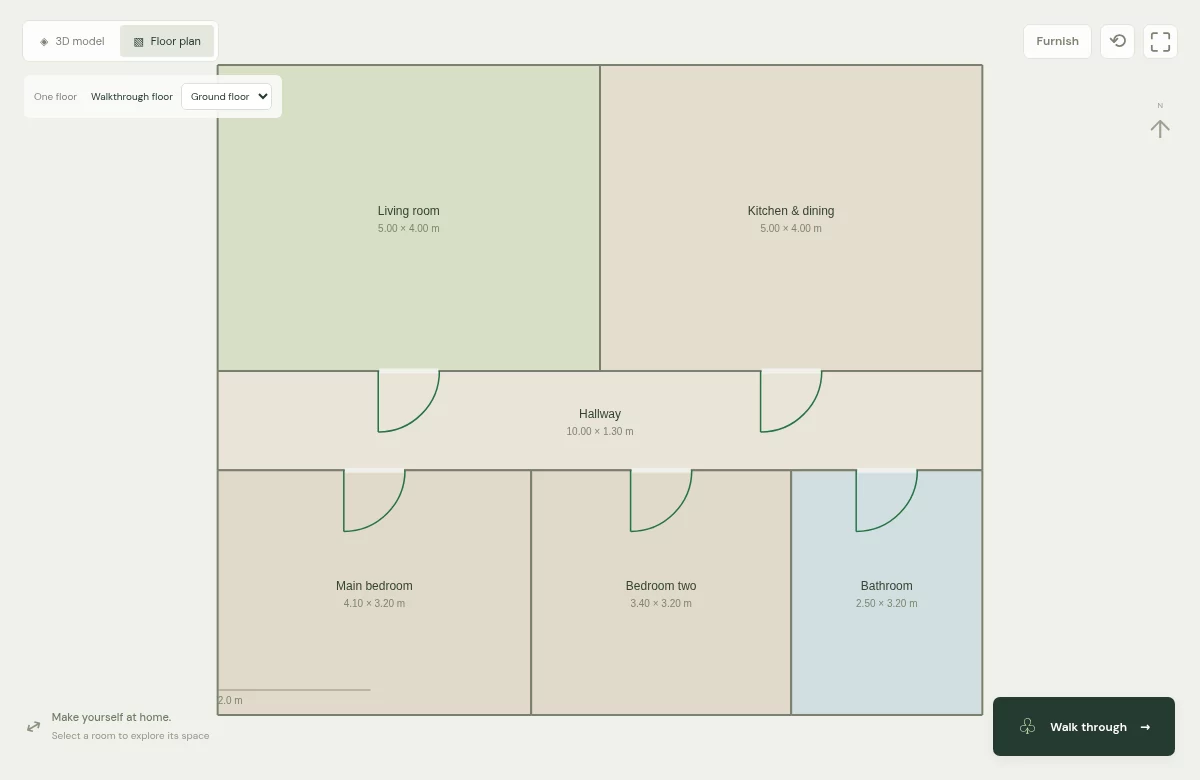
Choose Detect rooms, or use Draw room · click corners to trace the internal outline of a room manually. For an L-shaped room, include the recess rather than drawing one large rectangle. Adjacent rooms should meet along the same wall.
Review doors and connections before building. Missing or misplaced doors can make a walkthrough feel disconnected. Use the door tools to correct their position and swing. Listing photos can help you check a doorway, but cannot provide reliable measurements on their own.
3. Set and verify the real-world scale
Choose Set real-world scale. Use a clearly labelled length or a measurement you have checked yourself. If you use printed-dimension detection, review the room and the direction of each measurement before applying it. Then compare a second known span in another room.
If one room matches and another does not, recheck the source, selected span and room outline. Stretching the whole model to fix one uncertain measurement can make the other rooms less accurate. Mark the floor reviewed once the scale and layout agree with the evidence you have.
4. Build the model and walk through it
Choose Build 3D. In the workspace, rotate the overview to inspect the layout or select a room and start its walkthrough. Move with the arrow keys or WASD, drag to look around, and press Escape to leave the walkthrough. Touch controls are also available.
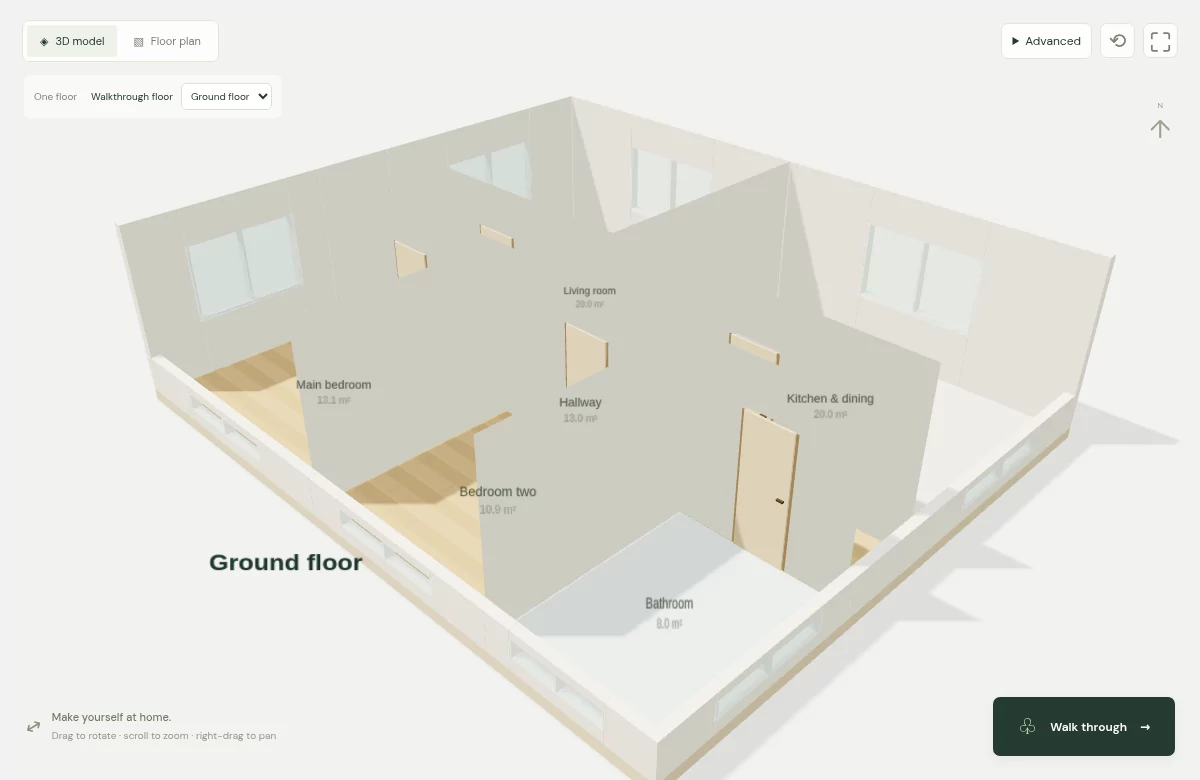
Open Furnish & decorate to try furniture, or use Floor plan → Furnish to place it from above. Our furniture-fit guide explains how to check dimensions and the space left around each item.
What the model can and cannot show
The model helps you compare layouts and prepare questions for a viewing. Photos remain reference material; they do not automatically recreate a property's finishes or furniture. Each floor is explored separately, and windows may be illustrative. Verify dimensions and details in person before ordering furniture or planning work.
If you have no drawing, you can still build a layout from room measurements. If a plan is hard to interpret, start with how to read a floor plan.